


Organizational building blocks
Before diving into strategy, here’s a quick overview of what each tool does:| Tool | Purpose |
|---|---|
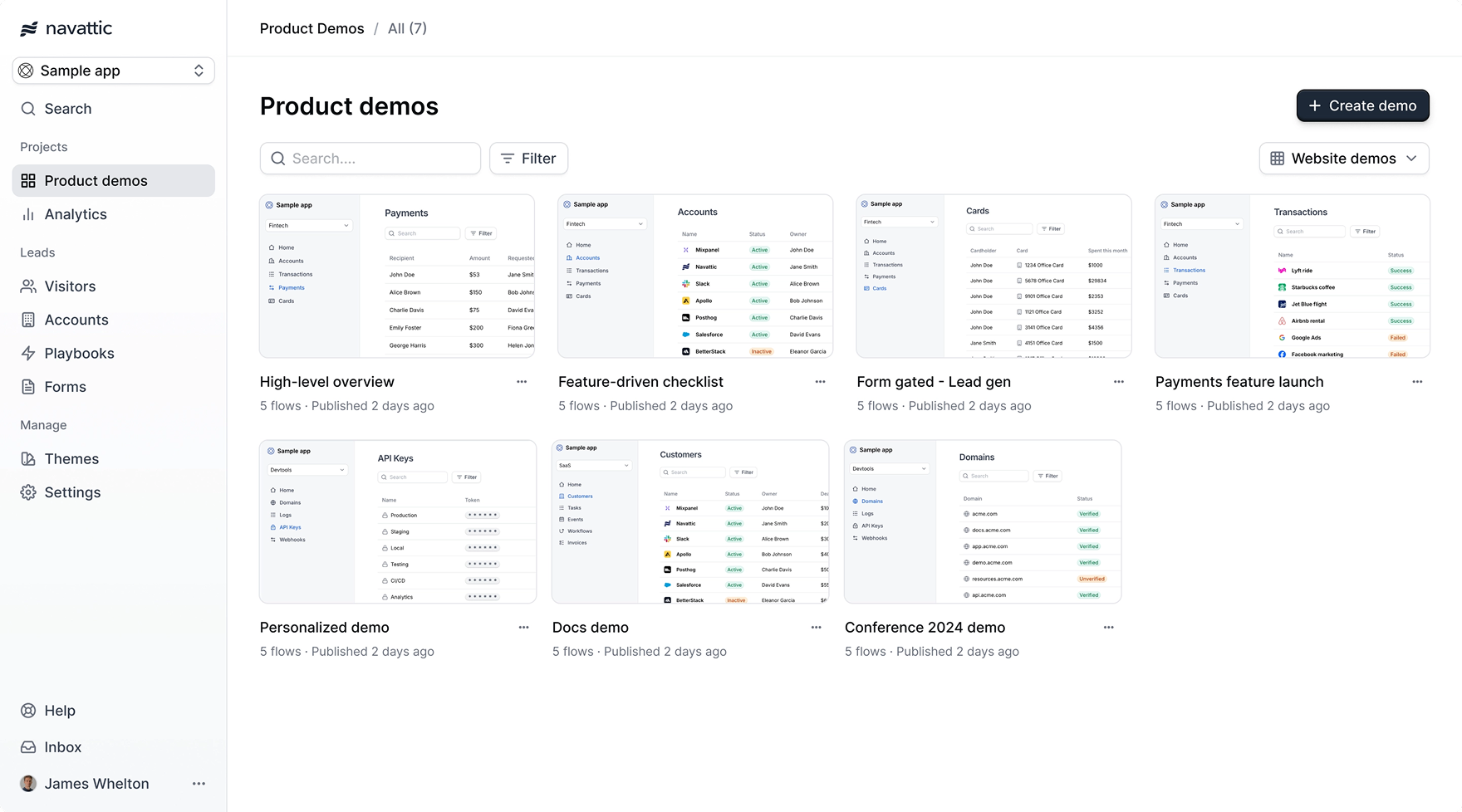
| Demo | A complete interactive experience made up of one or more Flows. |
| Flow | A step-by-step sequence within a demo. |
| Capture | A snapshot of your application that one or more Flows reference. |
| Board | A curated view of demos, shared with specific teams or the whole workspace. |
| Label | A tag applied to demos for filtering and categorization. |
| Team | A group of users with scoped access to specific boards. |
Boards
Organize demos onto shared views.
Labels
Categorize demos for easy filtering.
Teams
Scope access to demos by team.
Structuring your demo library
Boards
Create boards to group related demos — by use case, product area, sales team, or region. Start simple: a single Sales board and a single Marketing board is enough for most teams getting started. Add more boards as your library grows. When setting up a board, decide who should see it:- Workspace-level access — visible to all workspace members
- Team-level access — visible only to members of a specific team
Labels
Labels work across boards and let you filter demos by dimension. Some common label strategies:- By product area — tag demos for each core feature or product line
- By customer type — enterprise vs. mid-market vs. SMB
- By funnel stage — prospecting, discovery, evaluation
- By content status — current, needs-update, archived
Tips for larger libraries
- Agree on a label taxonomy before you start labeling — inconsistent labels are hard to fix later.
- Use boards for audience and access, labels for content attributes.
- Review boards periodically and remove demos that no longer belong.
Reusing content across demos
Captures
A capture is a snapshot of your application that can be referenced by multiple flows across different demos. If your capture is updated (for example, after a product change), all flows using that capture reflect the update. To reuse a capture in a new flow, use Replace capture from within the flow builder and select an existing capture from your workspace.Duplicating demos
To create a variation of an existing demo (for example, a version tailored to a specific vertical or audience), duplicate the demo from the Product demos page. The duplicate is an independent copy — changes to one don’t affect the other.Version history
Navattic tracks versions of your demos so you can see what changed over time. To access version history, open a demo in the Build tab and select Versions from the left sidebar.Keeping demos current
As your product evolves, your captures may become outdated. Here’s a general maintenance approach:- Set a review cadence. For fast-moving products, review key demos each time a significant feature ships.
- Recapture changed screens. Use the Chrome extension to take a new capture of a screen that has changed, then swap it into the relevant flow using Replace capture.
- Check labels for status. Adding a “needs-update” label to outdated demos helps your team know which ones to prioritize.
Because captures can be shared across multiple flows, updating a single capture propagates the change everywhere it is used. Be careful when replacing shared captures in production demos.
Governance and access control
Roles
Navattic has three workspace roles that control what each user can do:| Role | What they can do |
|---|---|
| Admin | Full access: manage settings, create demos, publish, invite members. |
| Builder | Create, edit, and publish demos. Cannot manage workspace settings. |
| Rep | View and share demos through Launchpad. Cannot build or edit. |
Approval workflow
If you want to prevent unapproved changes from going live on already-published demos, enable the Require approval to publish setting in Settings > General. Once enabled, team members without publish permission must request a review before their changes can go live. See Approval Workflow for full setup details.Team-scoped boards
Use Teams to restrict which boards (and therefore which demos) specific groups of users can access in Launchpad. This is useful for separating demo content by region, function, or product line.FAQs
What's the difference between boards and labels?
What's the difference between boards and labels?
Boards control which demos appear in a given view, and can be scoped to specific teams. Labels are tags you apply to demos for filtering — they don’t control access. Use boards to organize by audience; use labels to organize by content attributes.
If I update a capture, does it update everywhere it's used?
If I update a capture, does it update everywhere it's used?
Yes. Captures are shared across flows. If you replace or re-capture a screen, all flows that reference that capture will reflect the change. Review which demos use a capture before updating it in production.
Can I copy a demo to customize it for different audiences?
Can I copy a demo to customize it for different audiences?
Yes. Duplicate a demo from the Product demos page to create an independent copy. Make your changes to the duplicate without affecting the original.
How do I prevent reps from editing published demos?
How do I prevent reps from editing published demos?
Assign reps the Rep role in your workspace. Reps can only view and share demos through Launchpad — they cannot access the demo builder. For admins and builders, use the Approval Workflow to require review before changes are published.
Where is version history?
Where is version history?
Open a demo in the Demo builder, go to the Build tab, and select Versions from the left sidebar.
Can I make labels specific to a board?
Can I make labels specific to a board?
Labels are workspace-wide and apply across all boards. You can use a naming convention to associate labels with specific boards (e.g., prefix labels with the board name), but labels themselves are not scoped to individual boards.