


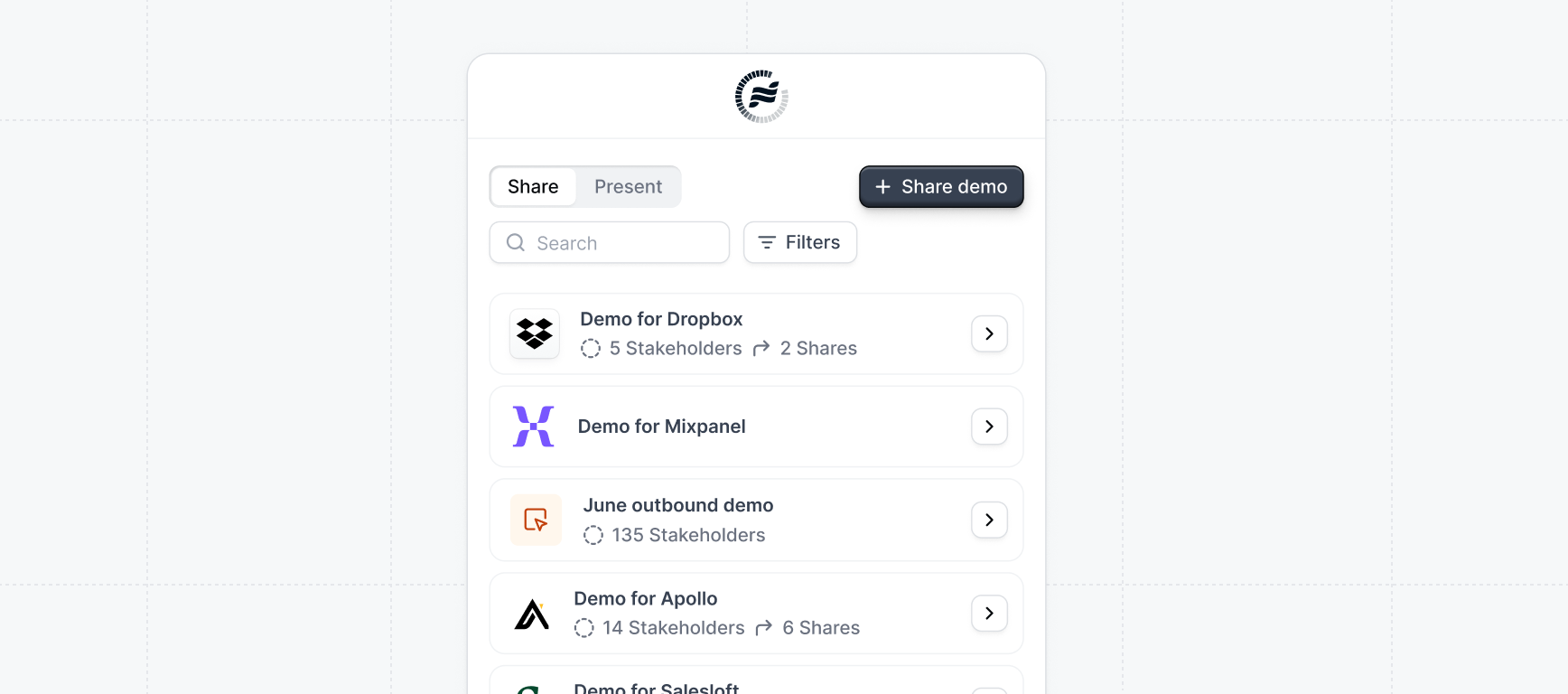
What is the Launchpad Extension?
The Launchpad Extension is a powerful tool that provides sales reps with frictionless access to demos. It allows reps to easily access demos on the boards available to Launchpad. Learn more about how to share demos in Launchpad:Sharing demos
Sharing demos from Launchpad
Installing the extension
Install the Launchpad extension. Your sales reps will be prompted to install the extension when they onboard.Extension integrations
Launchpad extension integrations meet your reps in the tools they live in. The extension integrations are enabled by default and can be configured on the settings page.Salesforce
Salesforce
When enabled, the Salesforce integration will provide 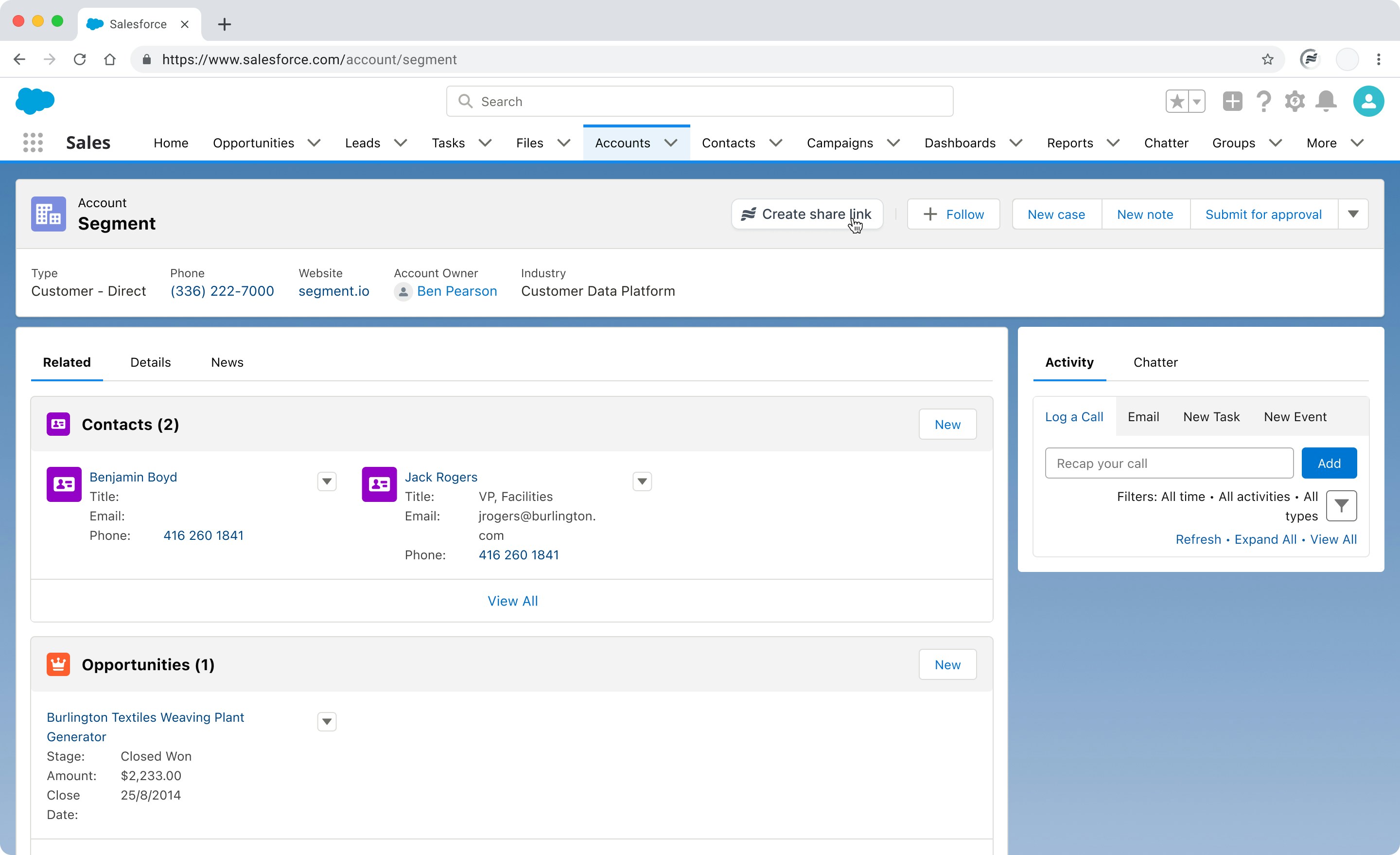
+ Share demo button on the Account and Opportunity pages in Salesforce. The created share link will be automatically associated with the Salesforce Account or Opportunity.When a link is created from the Salesforce Opportunity page, it will automatically be associated
with that Opportunity. Demo engagement will be sent back to the Opportunity.
LinkedIn
When enabled, the LinkedIn integration will add a 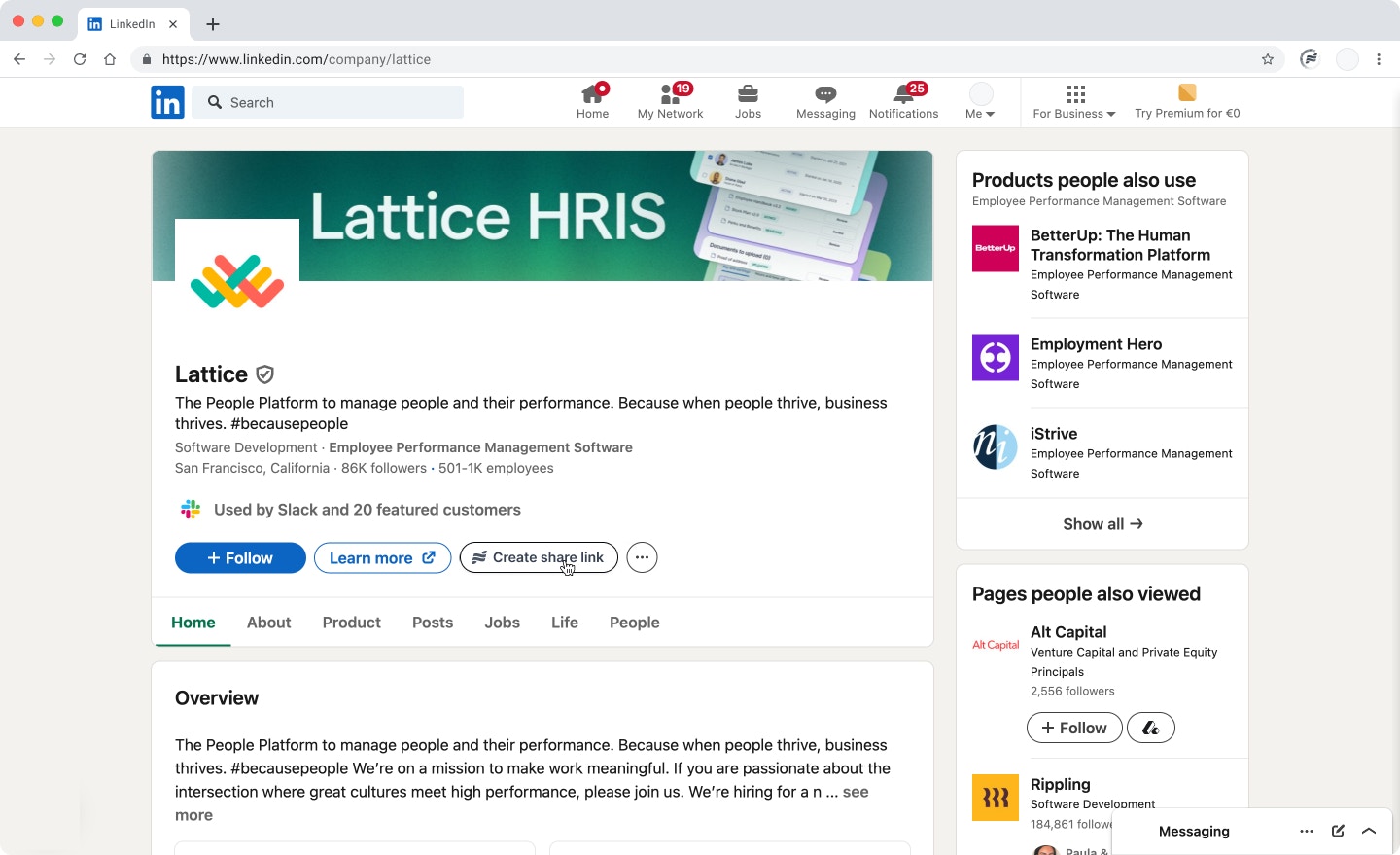
+ Share demo button on the company page in LinkedIn. The created share link will be automatically enriched with informaton about the company.
Gmail
Gmail
When enabled, the Gmail integration will add a 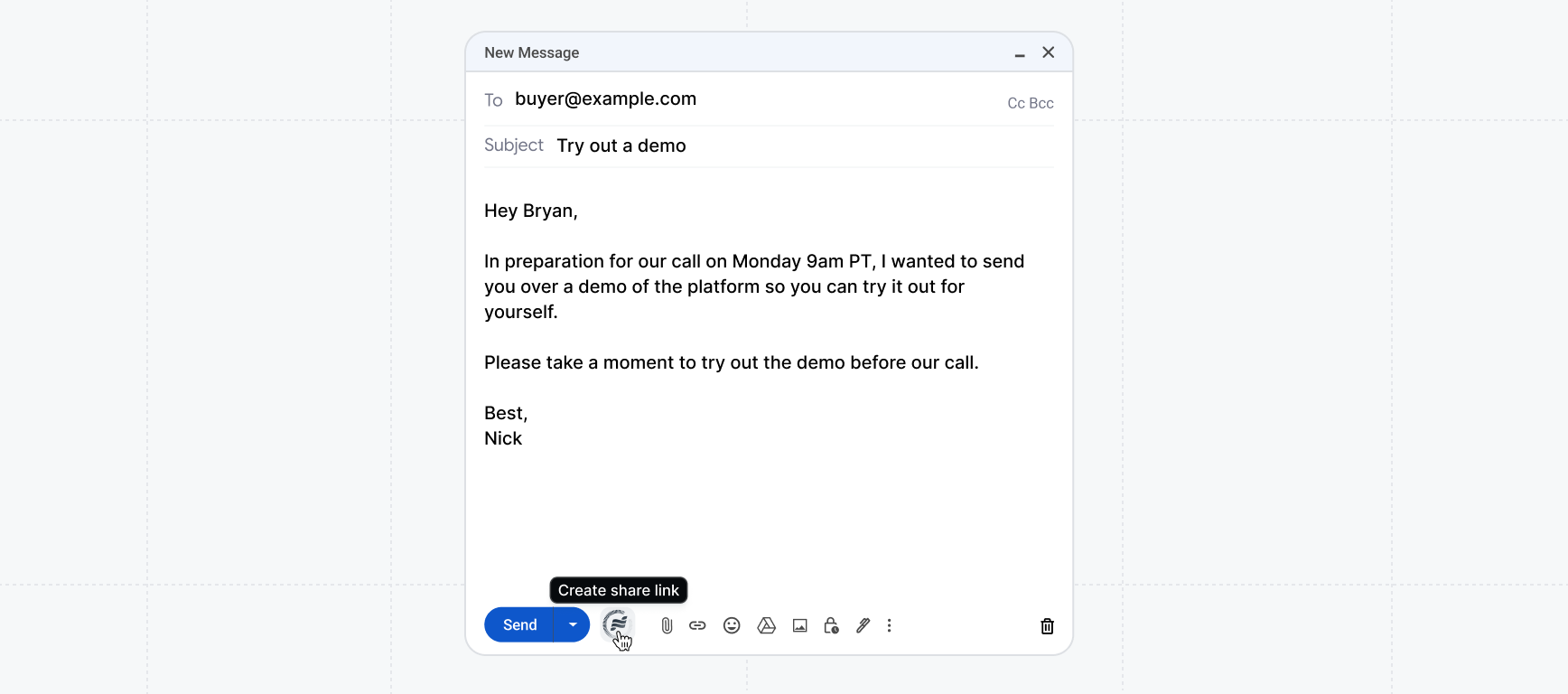
+ Share demo button from the new message window.Recording a video
The Launchpad extension lets reps record a custom video to accompany a demo share. Use this to add a personal intro, a quick walkthrough, or context before the prospect views the demo.How to record
Start recording mode
Select Record video from the extension menu. A recording setup panel will appear in the top-right corner of your screen.
Choose what to record
Select one of three recording areas:
| Option | What it captures |
|---|---|
| Tab | The current browser tab |
| Screen | Your entire screen |
| Camera | Your webcam only |
Configure your camera and microphone
Use the camera and microphone dropdowns to select your preferred devices. Select No camera to record without video.
Click Start recording
Click Start recording to begin. A countdown may appear before recording starts (you can toggle this under Advanced).
Advanced options
Expand Advanced in the recording setup panel to access additional settings:- Background blur — Apply a blur to your background when recording from a camera.
- Countdown — Show a countdown before recording starts to give yourself time to prepare.
Permissions
The extension requires screen or tab recording permissions from your browser. If you see a permissions warning, click the Launchpad extension icon and grant the requested permissions before starting your recording.Launchpad integrations
Looking for more integrations? View the full list here:Launchpad Integrations
Connect Launchpad with your CRM and email tools.